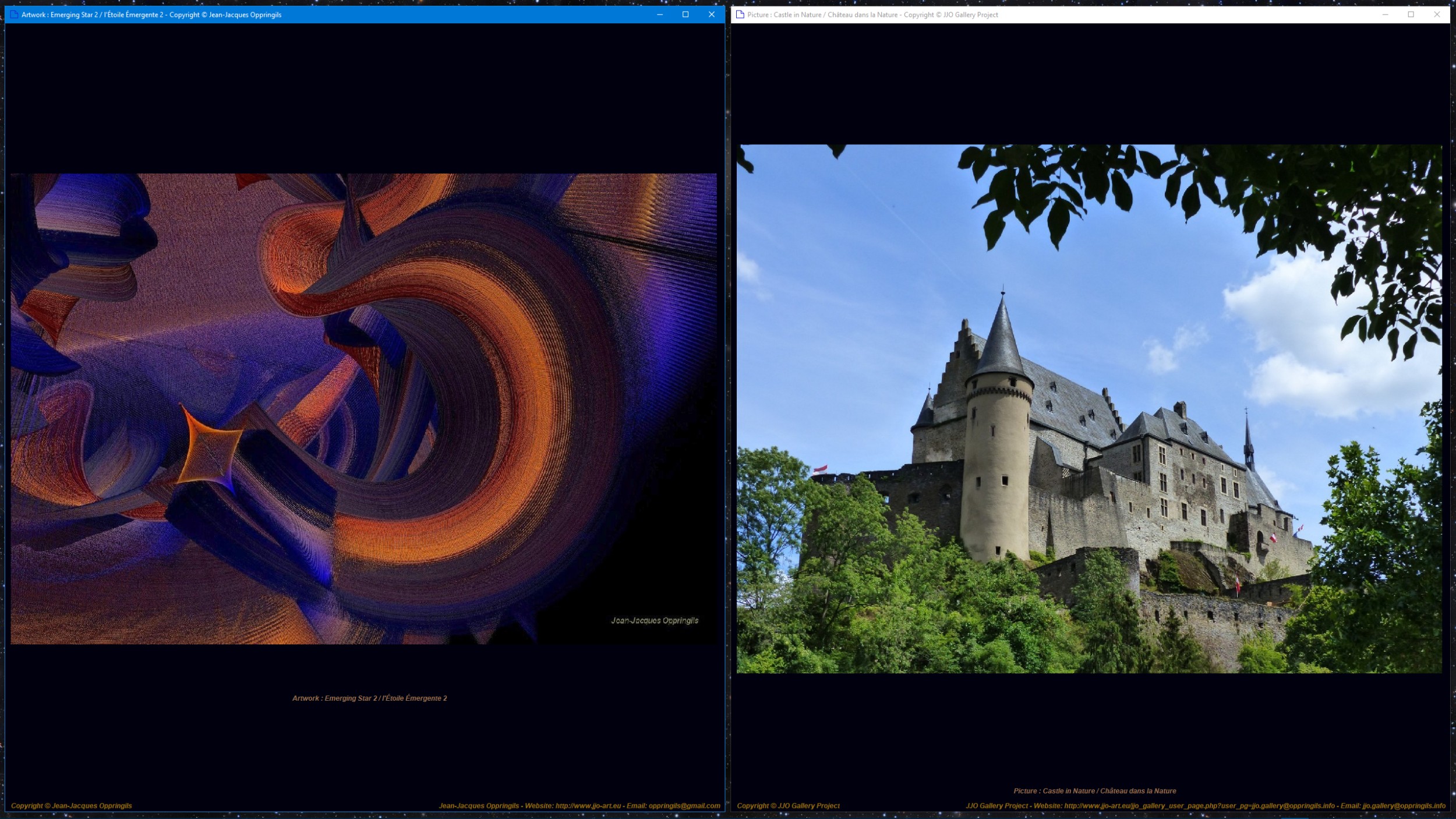
presenting the Artworks and Pictures of two Artists.
JJO Gallery and JJO MultiBrowser Programs
Create your virtual Art Exhibitions everywhere you want
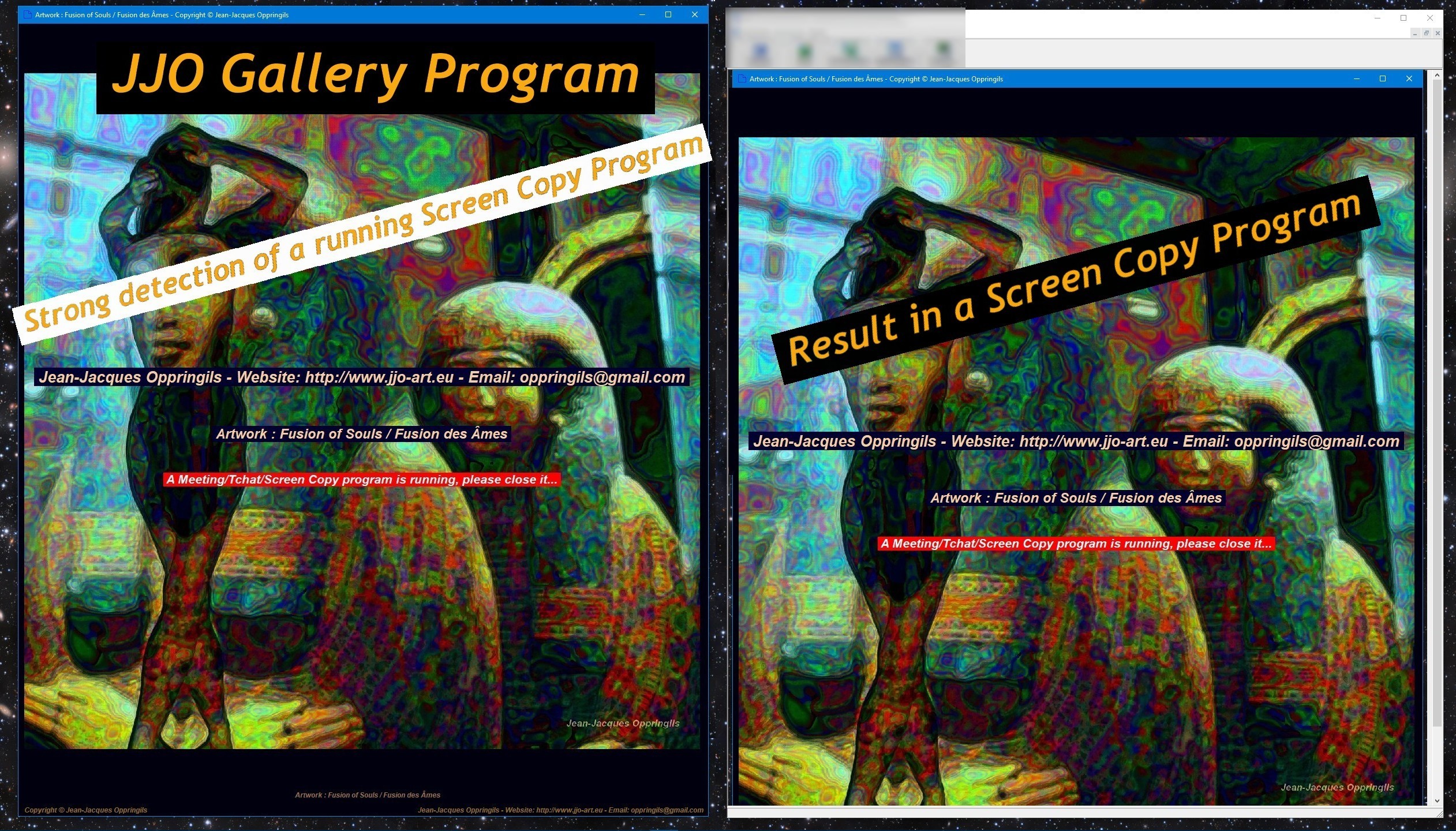
Including encryption and full protection against copies, downloads or screen copies allowing
the Artists to rent or sell their Artworks or Pictures securely and in accordance with their Copyrights.
The JJO Gallery program allows you to create several Artworks or Pictures virtual exhibitions
at the same time. It is a program dedicated to Arts and Artists as described below.
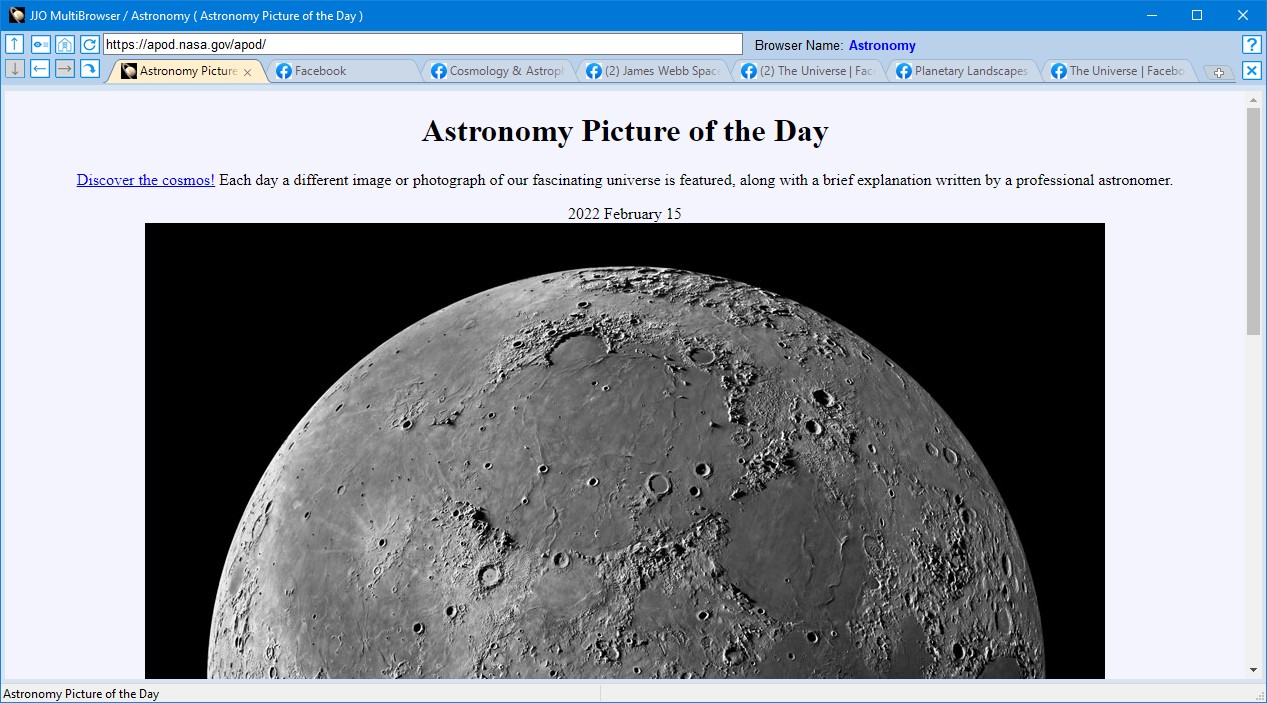
The JJO MultiBrowser program allows you to open several browsers at the same time,
each of which can open several tabs to different websites.
It is also a program for Arts and Artists as described below.
It can also be used for other purposes as commercial for example (see point 25 below).
Look at the following example of use :
|
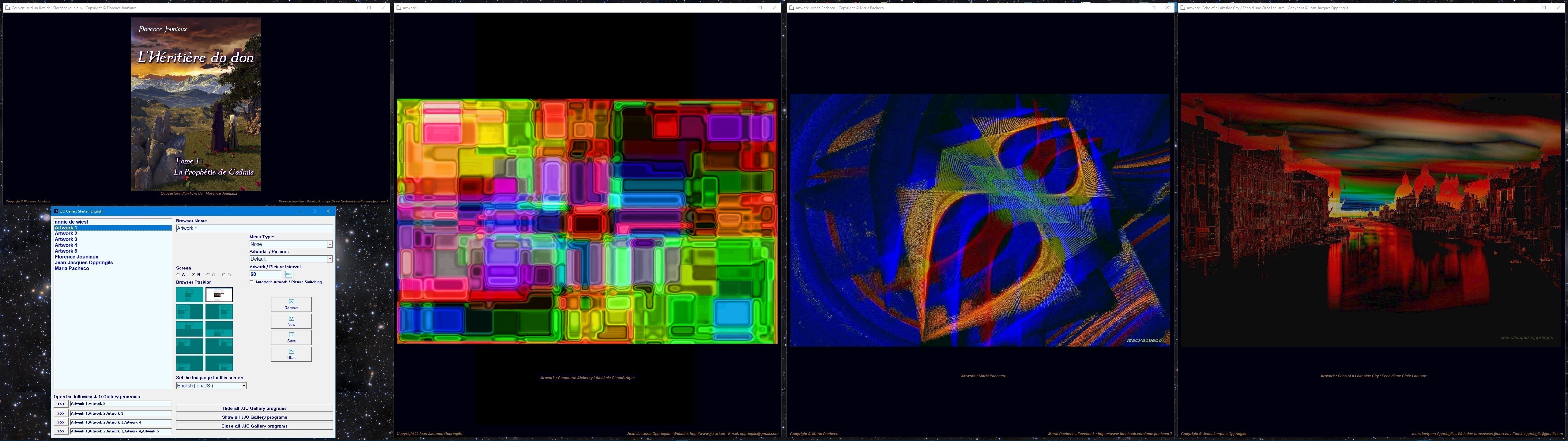
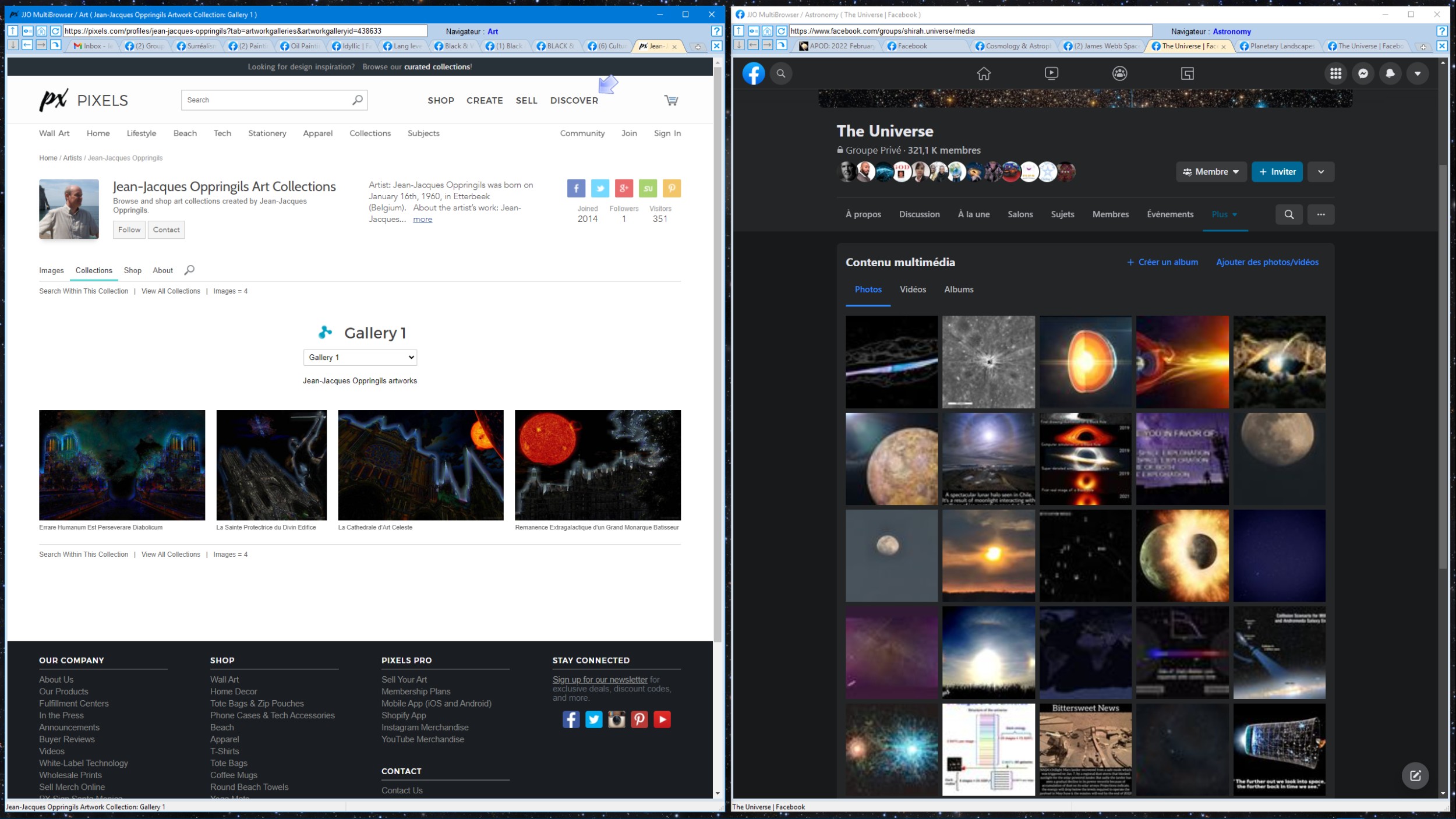
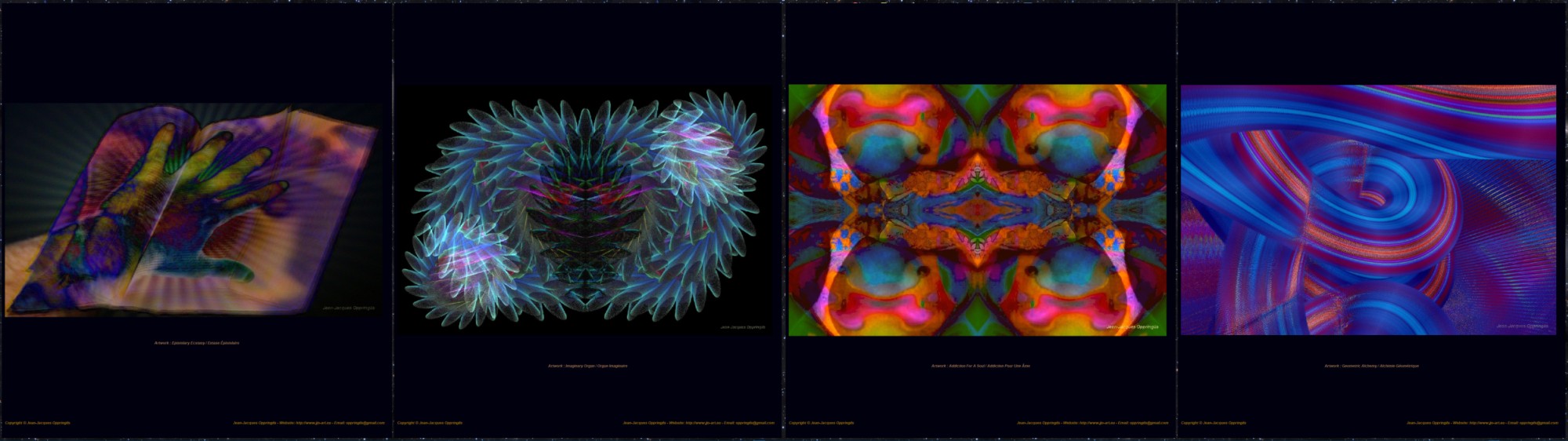
In this example, two JJO Gallery are opened at the same time on one screen, presenting the Artworks and Pictures of two Artists. |
|
|
|
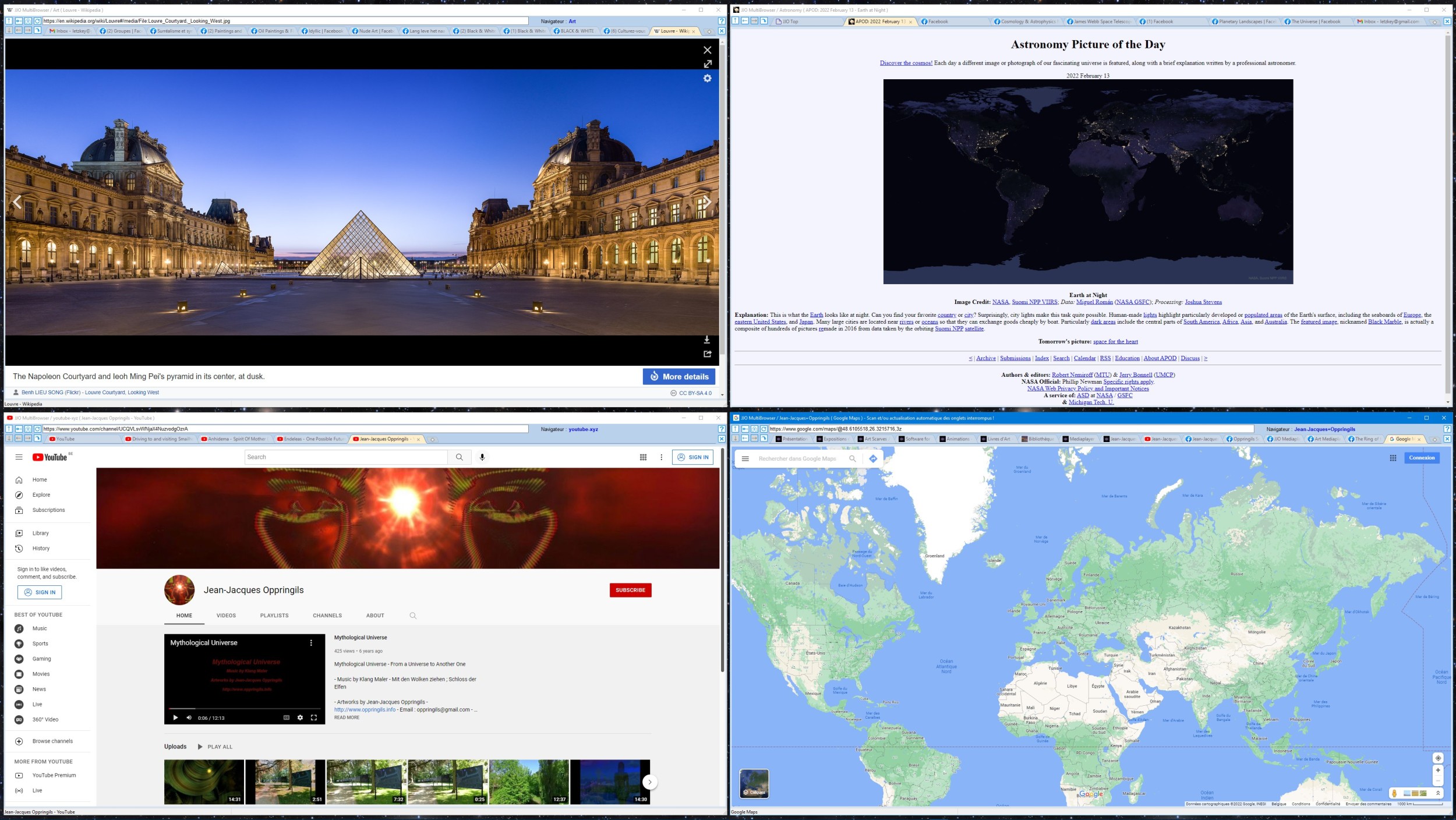
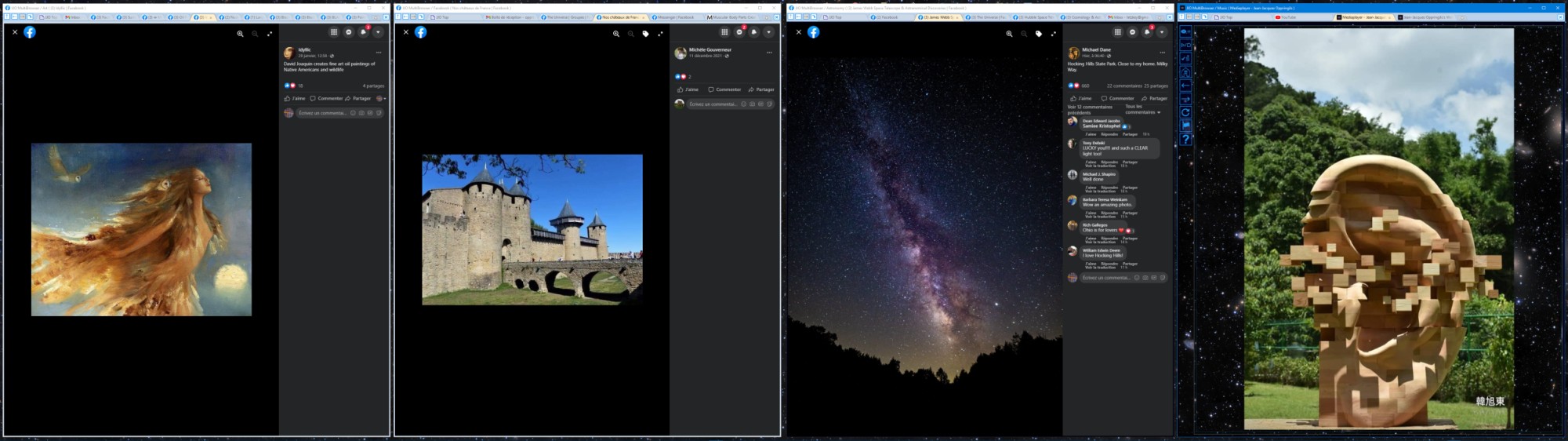
In this example, four JJO MultiBrowser are opened at the same time on one screen |
|
The JJO Gallery Starter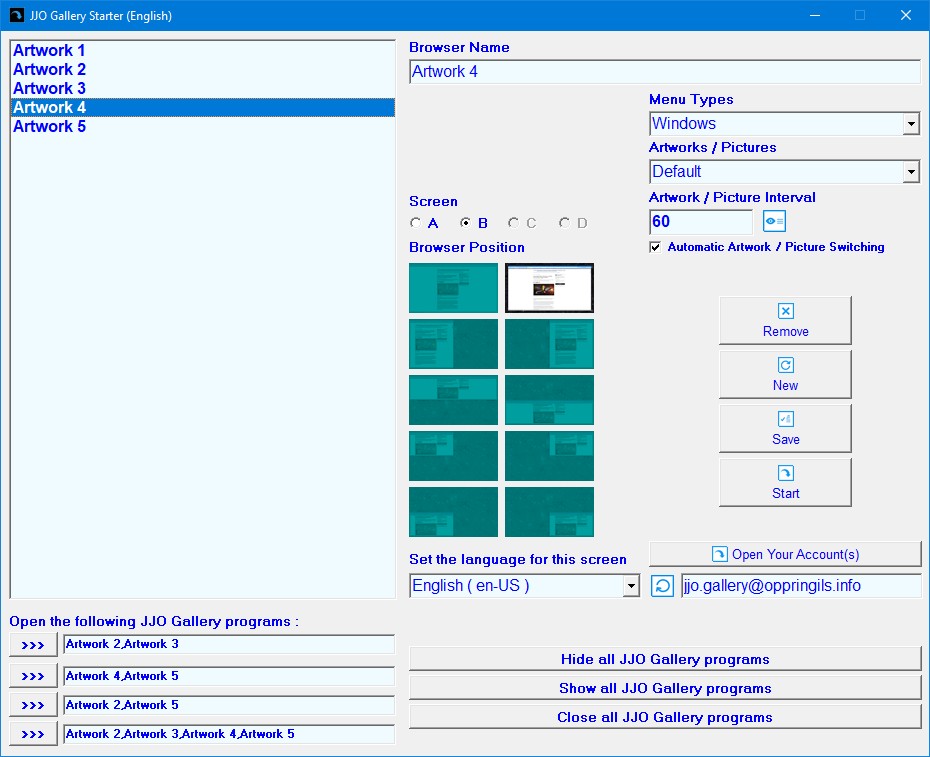
|
The JJO MultiBrowser Starter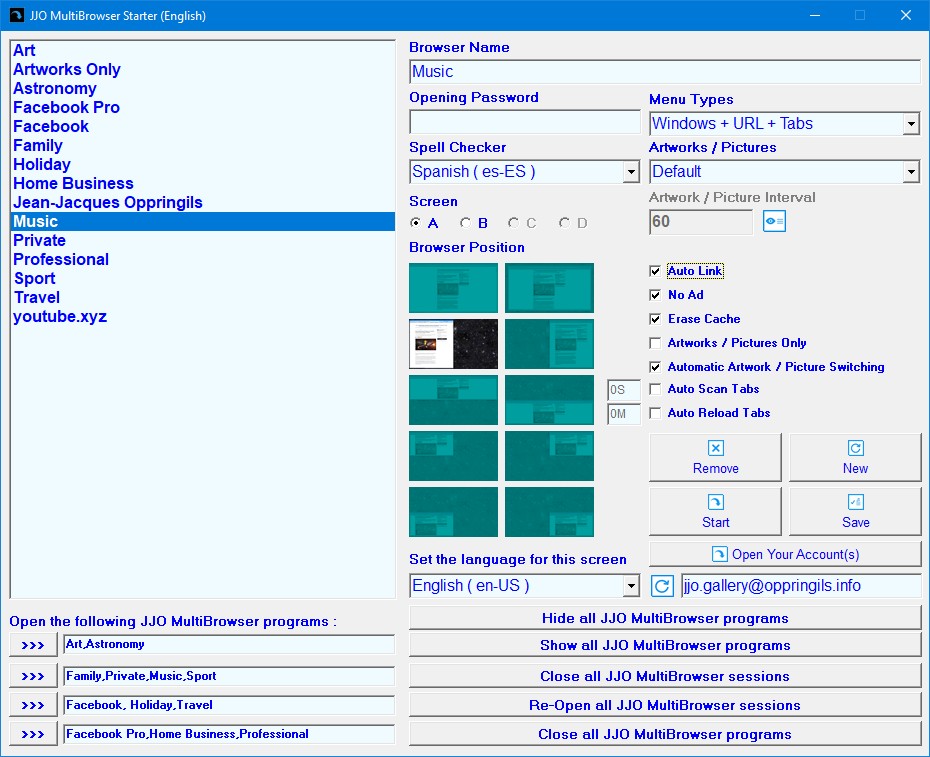
|
The JJO IPTC Tags Tiny Editor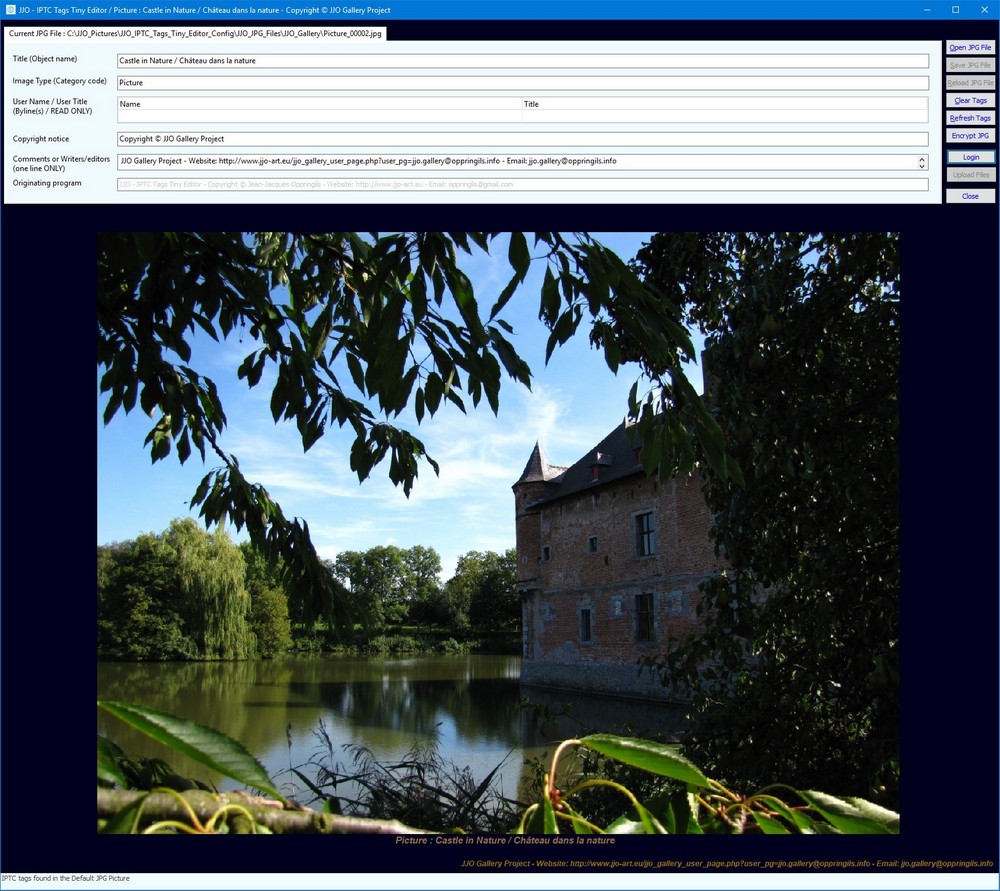
|
|
|
|
|
|
|

|
|
|
|
|
|
|
|
|
|
|
|
|
|
|
|
|
|
|
|
|
|
|
|
|
|
|
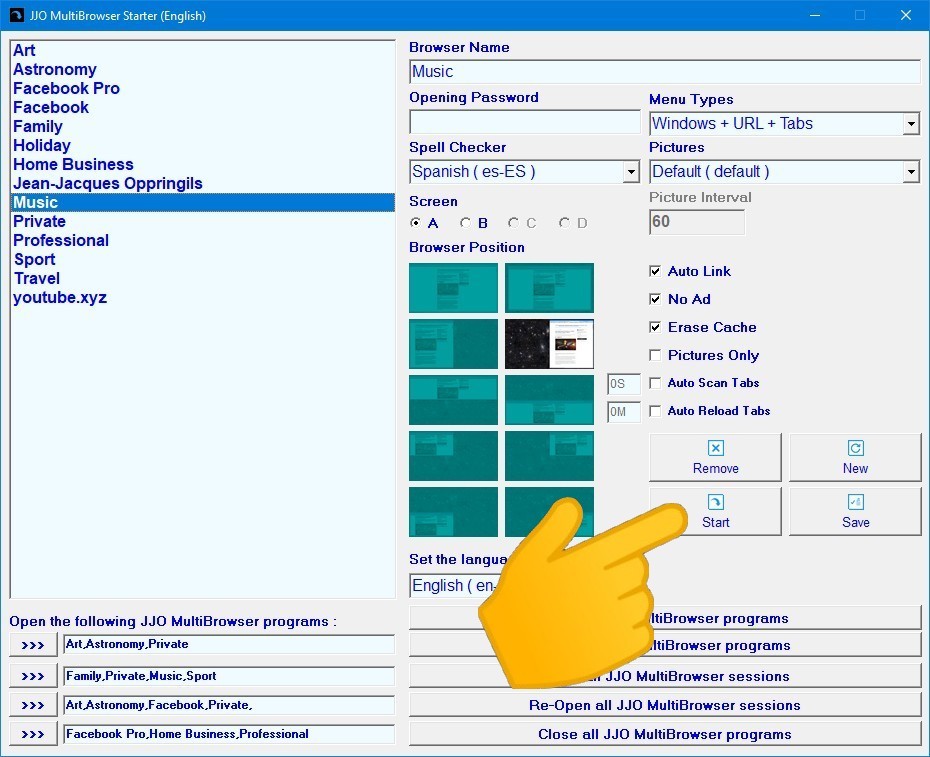
How to use the JJO MultiBrowser Starter : (The use of the JJO Gallery Starter is the same with less options) |
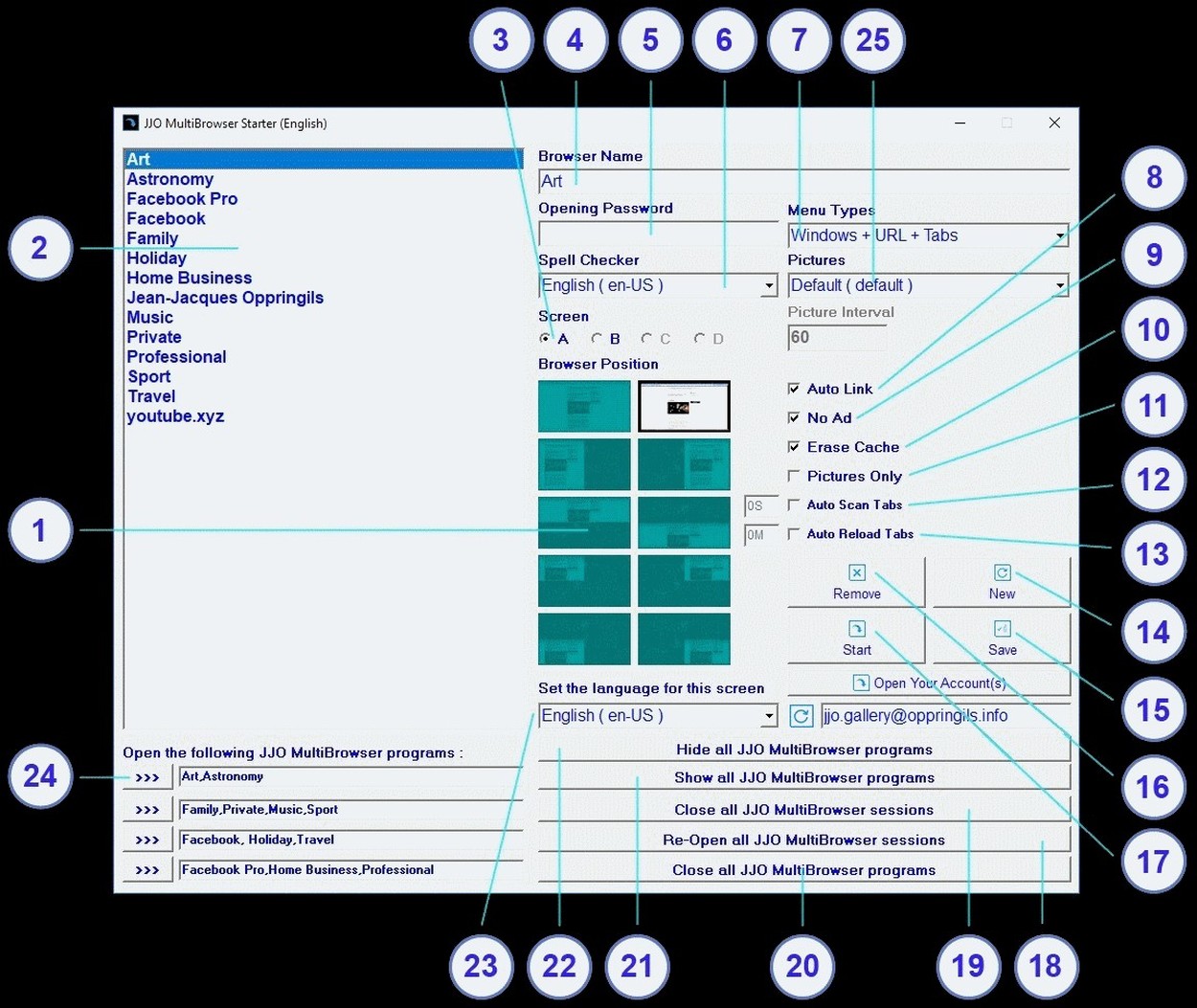
From this program, you can click on the "Open Your Account(s)" button.  |
 |
Browser Position : You can select 1 of the 10 available browser positions on screen according to your needs. If you have several screens, see point 3. |
 |
List of Browsers : This list allows to create and manage your different browsers according to your needs or preference. You can add, modify, remove and save all listed browsers. |
 |
Screen selection : If you have several screens (up to four), you can select the screen where you want to display the browser. |
 |
Browser Name : You can introduce a new browser name and parameter it. If you selected a browser in the browser list, its name will appear here. |
 |
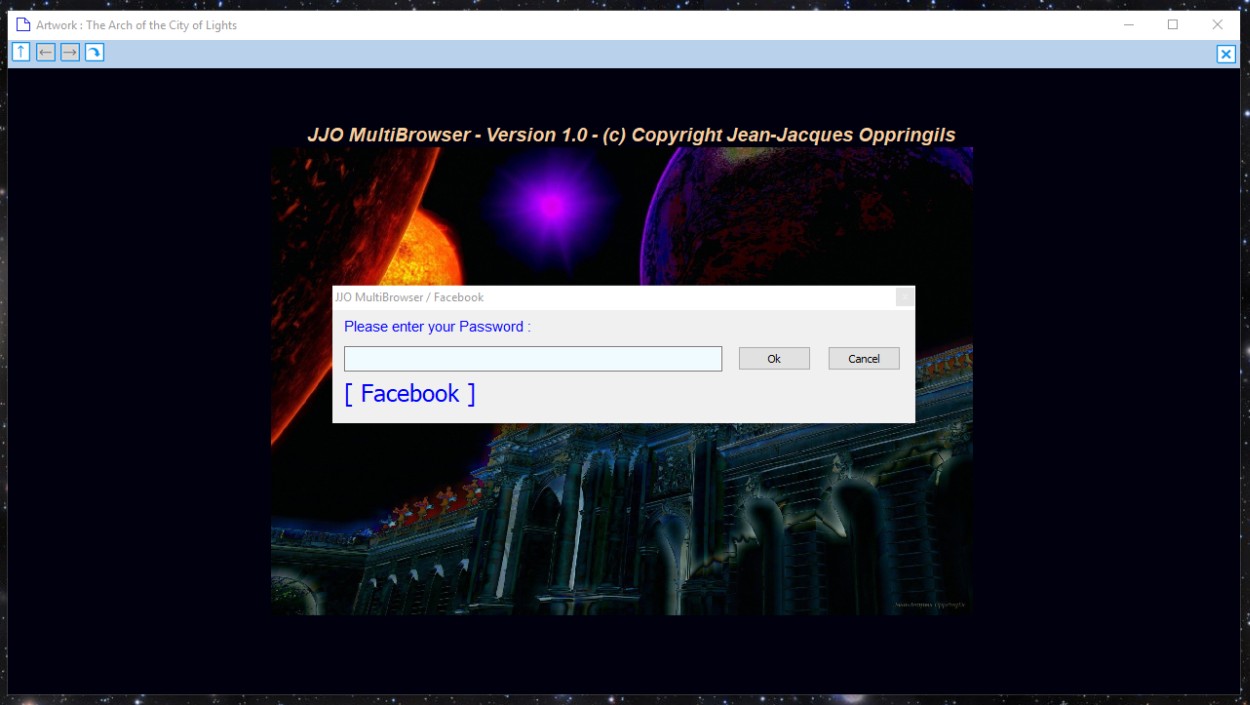
Opening Password : You can add a password in this field, it will be required at the browser opening. Attention : once introduced, the password cannot be modified. If you forget it or want to change it, you have to remove the concerned browser from the list and recreate it afterwards. |
 |
Spell Checker : You can select the language of the spell checker that will be used by the pages that enable this option. |
 |
Menu Types : This option allows to define the top menu of each browser. According to your preference and the layout of the browser you will open, you can choose to display more or less items in the top menu. If you choose "none", no menu will appear on top of the browser and in this case you can right click on the browser to open the navigation menu. |
 |
Auto Link : This option allows to organize the different opened pages in different browsers. For example, you already have opened your "Family" browser and you are going to click on a link pointing to Facebook. If the "Auto Link" option is checked and a "Facebook" browser is present in the browser list, the "Facebook" browser will automatically open and display the page you have called. Another example : the "youtube.xyz" browser allows to open any Youtube page whatever its domain extension is. |
 |
No Ad : This option allows to filter ads as much as possible. |
 |
Erase Cache : This options allows to erase the cache each time you close a browser while keeping cookies and last opened tabs. Use it to increase confidentiality. |
 |
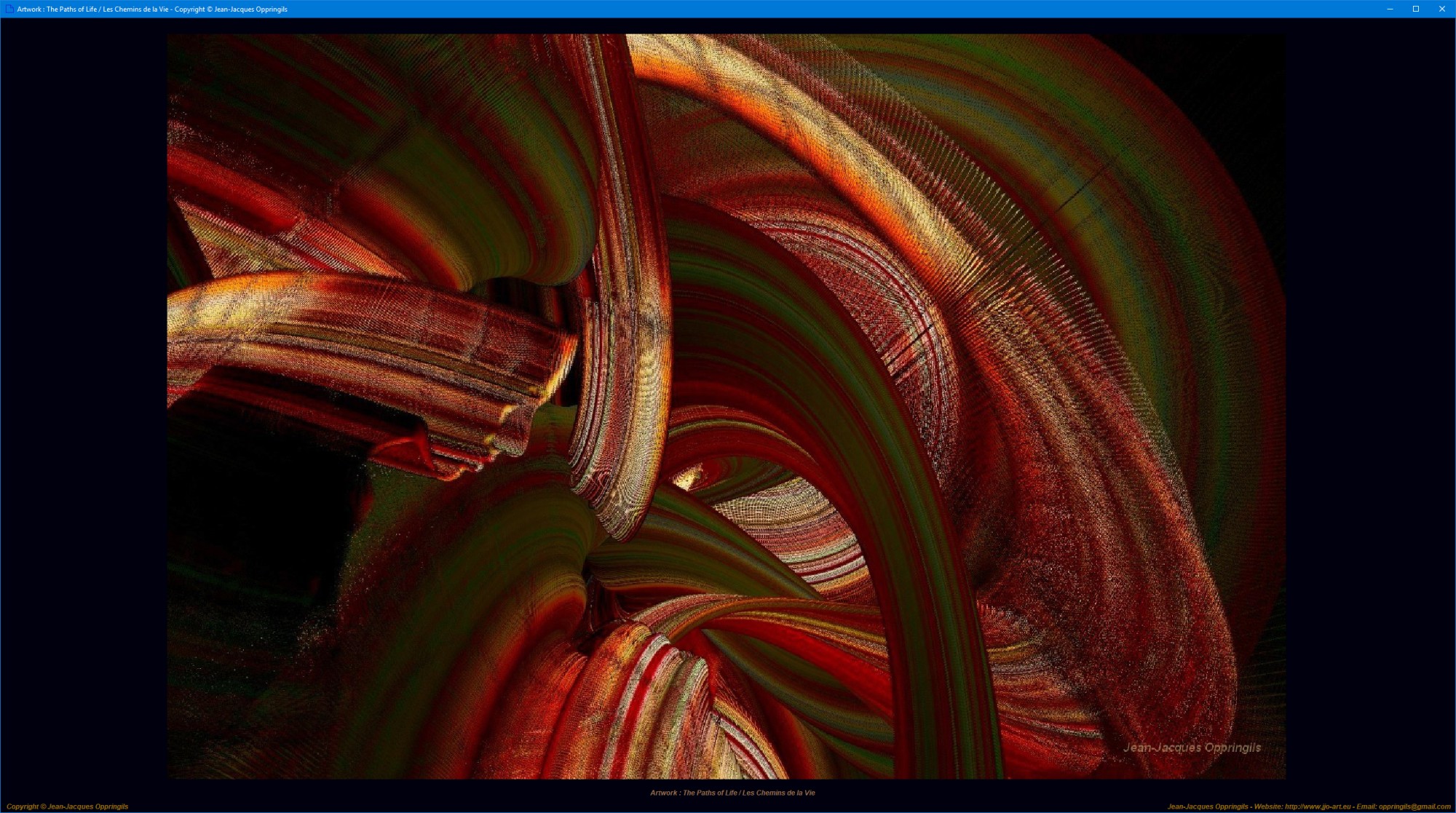
Pictures Only : This function allows to turn your JJO Multibrowser into an art gallery when selecting one of the artists involved in this project. It can also be used for other purposes as commercial. See point 25 to know more. |
 |
Auto Scan Tabs : This function is designed for showrooms or any space open to public where you want to display different web pages one after another within a certain delay in seconds (see field on the left of this option where you can enter the desired delay). This option can be used in conjunction with the "Auto Reload Tabs" option, see point 14. You can stop and restart this function with the F6 function key. |
 |
Auto Reload Tabs : This function allows to reload the different tabs after a delay that you can define in the field on the left of this option. Attention : the delay is in minutes or hours with a minimum of 15 minutes (15M) or one hour (1H) and a maximum of 24 hours or even several days. You can stop and restart this function with the F6 function key. |
 |
New Browser : This function allows to create a new browser and to define the different parameters as you want. |
 |
Save Browser : This function allows to save your parameter changes. |
 |
Remove Browser : This function allows to totally and definitely remove the selected browser. Attention : when you will use this option the "cache" and all associated files, cookies and tabs will be removed as well. |
 |
Start Browser : This function allows to start the selected browser. You can also start a browser by double clicking on its name in the browser list. |
 |
Re-Open all JJO MultiBrowser sessions : This function allows to re-open all JJO MultiBrowser sessions if you have closed all or several sessions. If you defined an opening password, you will have to enter it again. See point 19. |
 |
Close all JJO MultiBrowser sessions : This function allows to hide/close all JJO MultiBrowser sessions. Use it for example when you do not need to see the different opened tabs but just want to display art (see points 11 and 25). This function also offers security (if the browser is password protected) in case you need to leave your computer unsupervised and do not want anyone to access your email account for example. |
 |
Close all JJO MultiBrowser programs : This function allows to close all opened JJO MultiBrowsers. |
 |
Show all JJO MultiBrowser programs : This function allows to re-open all JJO MultiBrowser programs if you have hidden all of them. See point 22. |
 |
Hide all JJO MultiBrowser programs : This function allows to hide all JJO MultiBrowser programs. |
 |
Set the language for this screen : This function allows to select the user interface language of this starter. |
 |
Open the following JJO MultiBrowser programs : This function allows to automatically start the predefined browsers of your choice in the corresponding text areas. The different browser names must be separated by a "," character and the browsers must exist in the browser list. |
 |
Pictures Selection : This function is designed for Art Lovers. When this option is selected the JJO Multibrowser will become an art gallery where you can display artworks performed by artists involved in this project. If you are an artist and you have pictures (.jpg files) of your creations, contact me if you are interested in participating to this projet. Your pictures will be encrypted and securely hosted and made available through this program to the persons you want and/or any already existing users of the JJO Multibrowser programs. Moreover, this function can of course be used in other contexts than art. All pictures you want to display can be added in this project and the JJO Multibrowser program can be customized to fit your needs. If you are interested, contact me to discuss your project. |
|
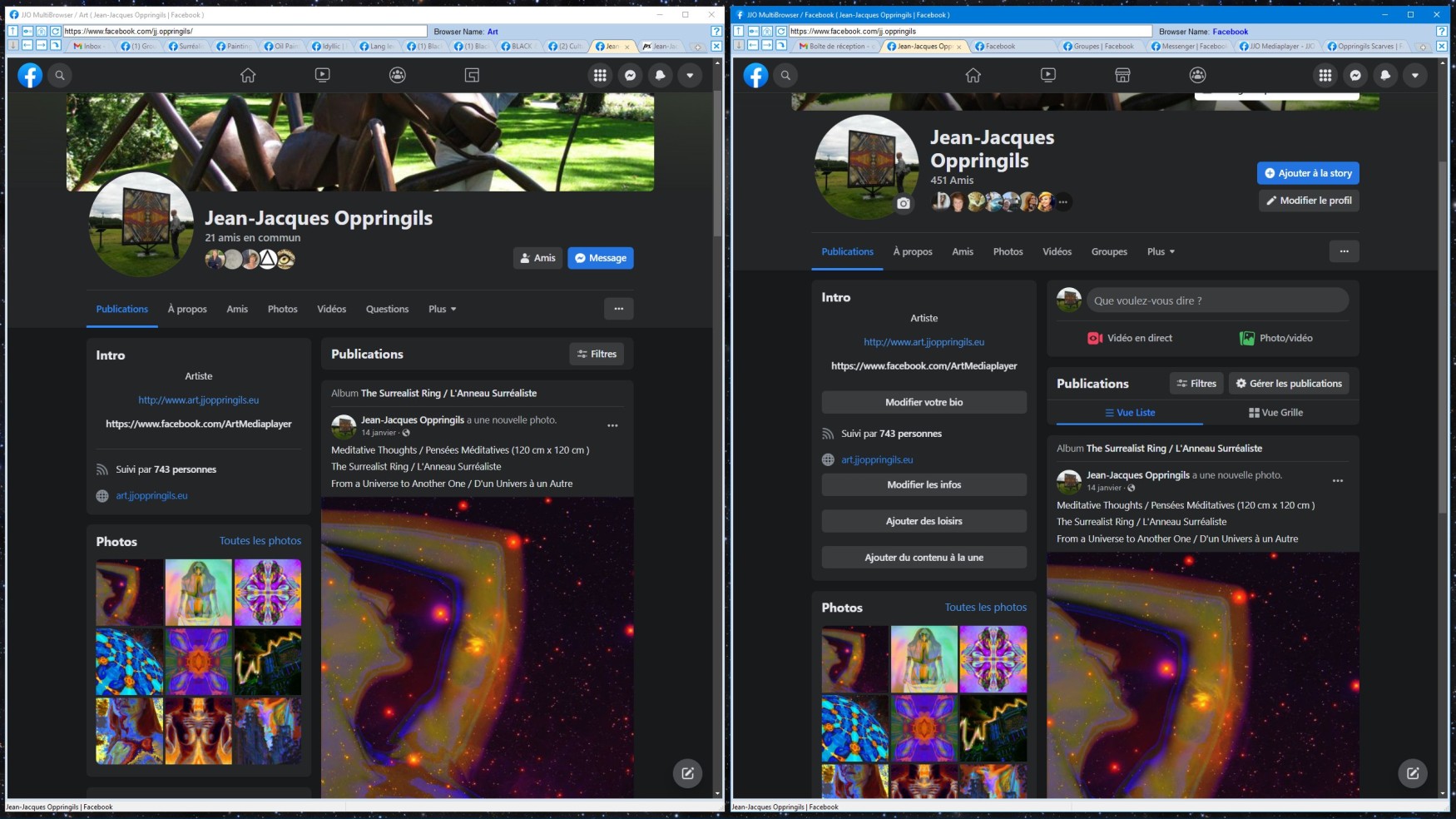
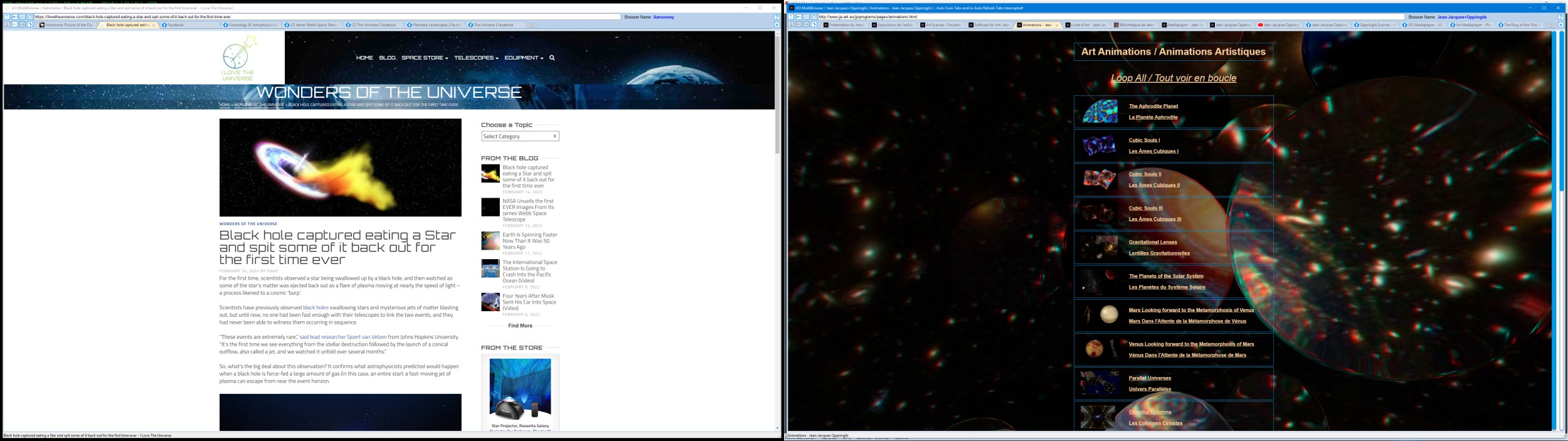
JJO MultiBrowser (2 opened at the same time) |
|
|
|
|
|
|
|
|
|
|
|
|
|
|
|
|